Backup Verification vs. Backup Testing: Why Most Teams Are Doing It Wrong
Published on: Saturday, Mar 21, 2026 By Admin
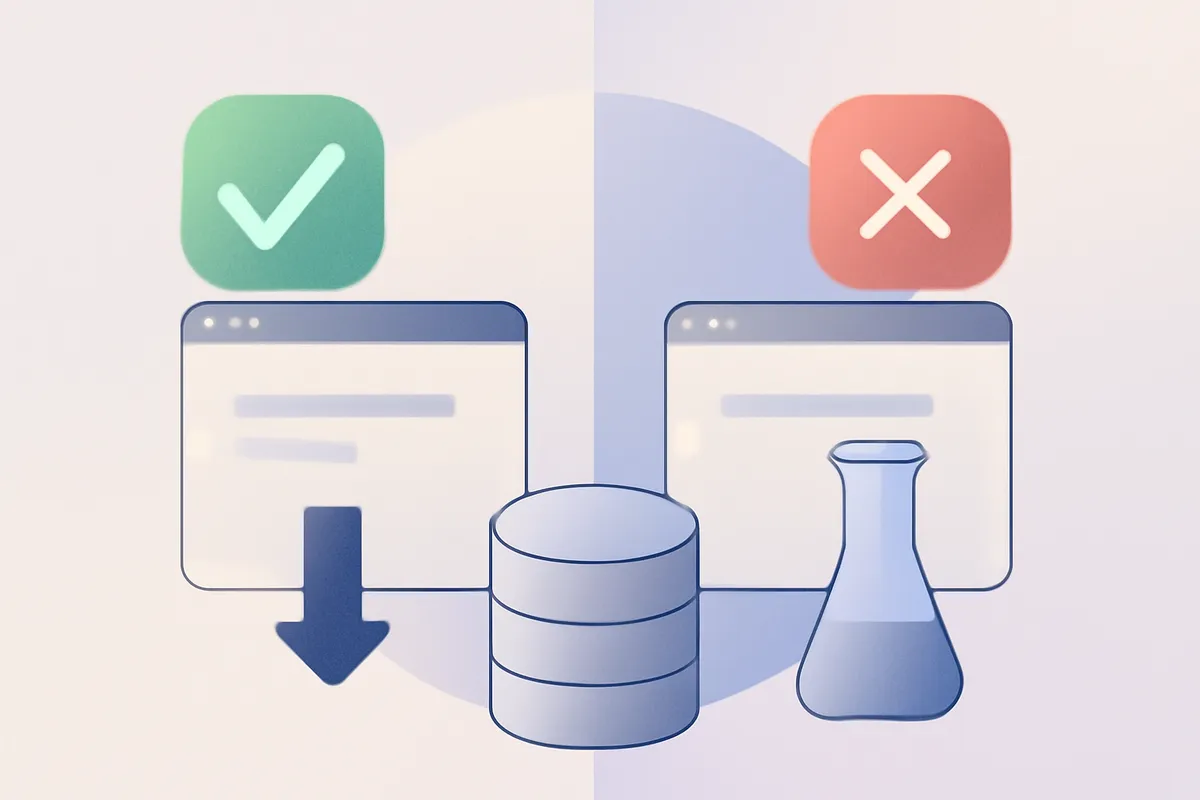
You get a green checkmark. Backup completed. Everything looks fine.
Then a server dies, you go to restore, and the file is corrupted. Or the snapshot is missing half the database. Or the restore process requires a tool you no longer have installed. The checkmark was lying to you, and you just found out the worst possible way.
This is the difference between backup verification and backup testing. Most teams think they’re doing both. Most teams are only doing one. And the one they’re skipping is the one that actually matters when things go sideways.
What Backup Verification Actually Means
Verification is the lighter of the two. When a backup tool verifies a backup, it’s typically checking that:
- The file or snapshot was written without errors
- The file size looks reasonable
- The checksum matches what was expected
That’s it. Verification is essentially asking “did this file land in the right place without getting corrupted in transit?” It’s a useful check. But it says nothing about whether you can actually restore from that backup.
Think of it like verifying a parachute was packed. The bag is there. The weight is right. The seal is intact. But nobody’s checked whether the chute actually opens.
Verification is necessary but not sufficient. It filters out obvious failures. It won’t catch the subtle ones.
What Verification Catches
- Write failures during the backup process
- Network errors during upload to storage
- File corruption during transfer
- Missing files that were supposed to be included
What Verification Misses
- Logical corruption inside the backup file itself
- Database dumps that completed but contain invalid SQL
- Snapshots taken mid-write that have inconsistent state
- Missing dependencies needed to actually perform a restore
- Changed restore procedures that nobody updated
If your backup process only verifies, you have a false sense of security. You know the backup arrived. You don’t know if it works.
What Backup Testing Actually Means
Testing goes further. Real backup testing means you actually restore from the backup into an environment and confirm that what you restored is functional.
That could mean:
- Restoring a database snapshot to a staging server and running queries against it
- Spinning up a server from a snapshot and checking that the application boots
- Pulling a file backup and confirming specific files are readable and intact
- Running a checksum comparison between the restored data and a known-good reference
The key word is functional. You’re not just confirming the backup file exists. You’re confirming it does the thing it’s supposed to do when you actually need it.
This is harder. It takes more time. It requires infrastructure. And it’s almost always the thing teams skip when they’re busy, which is always.
The Two Types of Backup Tests Worth Running
Restore tests. You pull the backup and restore it somewhere. Check that it’s complete and usable. This is the most thorough test and should happen regularly on your most critical data.
Integrity tests. You examine the backup file directly without doing a full restore. For databases, this might mean running pg_restore --list on a PostgreSQL dump to confirm it’s parseable. For file archives, it means extracting and verifying the contents. Faster than a full restore test, and better than nothing.
Ideally you’re doing both. Integrity tests frequently, full restore tests on a schedule that matches your actual recovery requirements.
Why Teams Conflate the Two
Backup tools, including some good ones, often use the word “verified” loosely. A dashboard might say “Backup verified” after it’s confirmed the upload completed. That reads like a complete success. And most people stop there.
There’s also a tooling gap. Verification is something your backup software can do automatically. Testing usually requires additional infrastructure, scripting, and human judgment. It doesn’t fit neatly into a single automated step.
And honestly, there’s a psychological element too. The green checkmark feels like confirmation. Nobody wants to do extra work when something looks like it succeeded.
But here’s what matters operationally: your users don’t care whether your backups verified. They care whether you can restore when something breaks. Those are different questions.
How to Set Up a Real Backup Testing Process
This doesn’t have to be a massive project. Start simple and make it repeatable.
Step 1: Identify What Actually Needs to Be Tested
Not all backups are equal. A backup of your application logs is not the same as a backup of your production database. Start with your highest-criticality data. Rank your backups by how bad it would be if a restore failed. That’s your testing priority list.
For most SaaS teams, that list looks something like:
- Production database backups
- Application config and environment files
- User-uploaded files and assets
- Everything else
Step 2: Define What “Functional” Means for Each Backup Type
Before you can test a restore, you need to know what success looks like. This sounds obvious but most teams skip it.
For a PostgreSQL backup: Can you connect to the restored database? Do the table counts match? Can you run a specific set of queries that touch your core schema?
For a file backup: Are all expected files present? Can you read a sample from each directory? Do file sizes match a reference snapshot?
Write this down. Even a short checklist. If you haven’t defined success criteria, you can’t meaningfully test.
Step 3: Create a Restore Target Environment
You need somewhere to restore to that isn’t production. This can be a dedicated staging server, a temporary cloud instance, or even a local environment for smaller data sets.
The goal is to have a place where you can restore freely without risk. If spinning this up manually is painful, automate it. A simple script that provisions a clean instance, restores a backup, runs your validation checks, and tears everything down is genuinely achievable for most teams in an afternoon.
Step 4: Schedule Tests and Stick to the Schedule
Restore testing that only happens after an incident isn’t really testing. It’s triage.
A reasonable starting cadence for most teams:
- Weekly: Integrity checks on all critical backups
- Monthly: Full restore test on your most critical backup (production database)
- Quarterly: Full restore test across all backup types, including the ones you think about less often
Adjust based on how often your data changes and how painful a failed restore would actually be.
Step 5: Document the Results
Every restore test should produce a record. Pass or fail. What was tested. What the restore time was. Any issues found.
This serves two purposes. First, it builds institutional memory. If you’re sick and someone else needs to handle a restore, they have a reference. Second, it creates an audit trail that’s genuinely useful if you ever need to demonstrate compliance with data protection requirements.
Common Problems You’ll Find (and What to Do About Them)
Running restore tests will find problems. That’s the point. Here are the ones that come up most often.
Backups that complete but produce unusable restores. This usually means the backup was taken mid-transaction or mid-write. Fix: use your database’s native dump tools (pg_dump, mysqldump) with appropriate consistency flags. For file systems, use snapshot-based backups that capture a consistent point in time.
Missing credentials or configs needed for the restore. You’ve got the data but you can’t connect the application to it because a config file or secret wasn’t included in the backup scope. Fix: audit exactly what’s included in each backup and compare it against what a fresh install actually requires.
Restore tooling that doesn’t match what you have. The backup was made with a specific version of a tool and you’re trying to restore with a different version. Fix: document the tool versions used during backup and include them in your restore runbooks.
Restore time that’s way longer than your actual recovery target. You assumed you could restore in two hours. The actual test takes six. Fix: either change your backup strategy (more frequent snapshots, different storage region) or adjust your expectations and communicate them to stakeholders before an incident, not during one.
Nobody knows where the restore documentation is. This isn’t a technical problem, it’s a process one. Fix: put your restore runbooks somewhere everyone on the team can find them, and verify the link actually works when you run your next test.
What Good Tooling Does (and Doesn’t) Do for You
Good backup tooling makes the verification side easy. Automated scheduling, status dashboards, alerts when backups fail or are overdue. That’s table stakes.
What tooling can do for testing is reduce the friction. A tool that gives you one-click restores and clear restore logs makes it much faster to spin up a test restore and confirm it worked. Less manual work means you’ll actually do it.
With Snapbucket, the restore process is built to be fast and predictable. You get a secure download link or a guided restore flow, and you can see exactly what’s being restored and when. That predictability is what makes scheduled testing feasible. If restoring is a painful manual process, you’ll keep pushing the test to next week. If it’s quick and clear, you’ll do it.
The centralized dashboard also means you’re not hunting through multiple tools to find which backup is which. Everything’s in one place with full visibility into backup state, timing, and history.
But the testing logic itself, the part where you confirm the restored data is actually functional, that’s on your team. No tool can run your application’s smoke tests for you. The tool gets you the data. You have to verify the data works.
Building This Into Your Team’s Culture
The hardest part of backup testing isn’t the technical setup. It’s making it a habit that survives team growth and production pressure.
A few things that help:
Assign ownership. Someone specific is responsible for running the monthly restore test. It’s on their calendar. If they’re out, there’s a backup person. Shared ownership is usually no ownership.
Treat a failed restore test like a bug. Log it. Assign it. Fix it. If your team’s first reaction to a failed test is “we’ll sort it out when we need to,” you haven’t actually integrated this into how you work.
Include backup testing in your incident retrospectives. When something goes wrong, one of the questions should always be: “Would our backups have saved us, and do we actually know that?” If you don’t know, that’s your next task.
Make the results visible. Post a monthly summary in your team Slack or in your ops notes. “Restored production DB backup from March 14. Took 23 minutes. All checks passed.” Short. Boring. Exactly what you want.
Conclusion
Backup verification and backup testing aren’t the same thing. Verification tells you the backup file showed up. Testing tells you the backup actually works. You need both, and most teams are only doing the first one.
The fix is straightforward: define what a functional restore looks like for each of your critical backups, create a target environment to restore into, schedule tests regularly, and document the results. Start with your production database. Do it this month. Then make it a habit.
Three things to take away:
- A green checkmark means the file landed. It does not mean the file works.
- Testing frequency should match how bad a failed restore would actually be.
- Restore testing is most useful before you need it.
If you’re not sure what your current backup coverage looks like, the Snapbucket features page is a good place to start. And if you want to see how fast a guided restore can actually be, the pricing page has a free trial option. Try restoring something. You might be surprised how much you learn.