How to Test Your Server Backups Before a Disaster Forces You To
Published on: Friday, Mar 13, 2026 By Admin
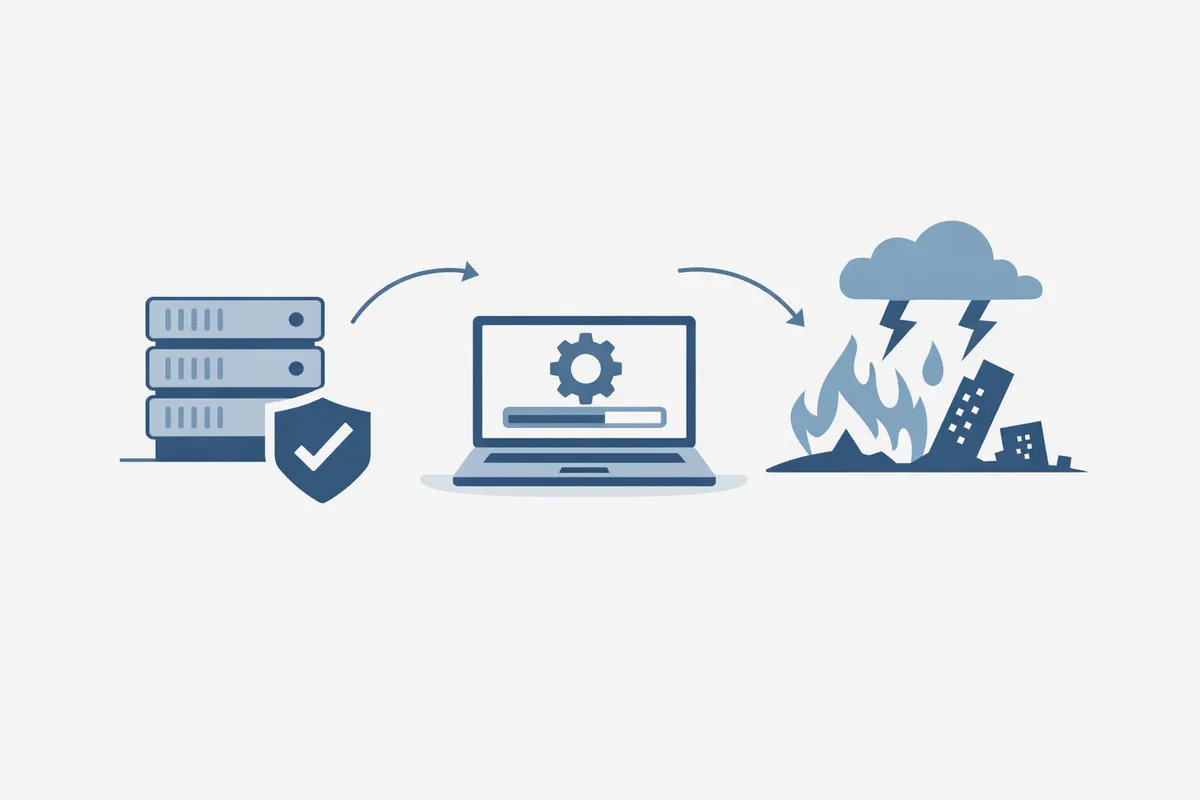
You have backups running. The scheduler is green. The files are landing in your bucket. You’re covered, right?
Maybe. But “maybe” is a terrible answer when your production database is gone and a customer is on the phone. The truth is that a backup you’ve never tested is closer to a feeling of safety than actual safety. Corrupt archives, missing files, broken restore scripts, permission mismatches… these things hide quietly in untested backups for months. And they only show up at the worst possible moment.
Why Backup Testing Gets Skipped (And Why That’s Dangerous)
Nobody sets out to ignore backup testing. It just slips. You’re busy. The backups are “probably fine.” There’s always something more urgent.
But skipped testing compounds silently. A misconfigured backup agent starts writing incomplete snapshots. Nobody notices because nothing’s failed yet. Three months later, you need to restore, and you discover the last six weeks of backups are missing critical files.
This happens more than people admit. The backup job completed successfully. The logs said so. But “completed” doesn’t mean “usable.”
There’s a meaningful difference between:
- A backup that ran (the job finished without errors)
- A backup that worked (you can actually restore from it)
Only a restore test tells you which one you have. Everything else is guesswork.
What a Real Backup Test Actually Involves
Testing a backup isn’t just downloading the archive and checking the file size looks right. A real test has three parts.
1. Integrity verification
Can the archive be opened and read? Is the data inside consistent? For database dumps, this means checking that the SQL is valid and complete. For file-level backups, it means confirming directory structure, file counts, and checksums match what was originally captured.
2. Restore execution
Can you actually restore the backup to a working state on a real (or realistic) system? This means spinning up a clean environment, running the restore process, and confirming the application or service comes back up correctly.
3. Functional validation
After restore, does the system actually work? Can you query the database? Can the app connect to it? Can you log in? A restore that technically completes but leaves you with a broken application isn’t a successful restore.
Most teams only do step one, if they do anything at all. Steps two and three are where the real gaps show up.
Setting Up a Staging Environment for Restore Tests
You don’t need a perfect environment to test restores. You need a good-enough one.
For most teams, this means a lightweight staging server or a temporary VM that mirrors the general shape of production. Same OS, same database version, same application stack. It doesn’t need the same compute specs. You’re not load testing, you’re validating data.
For cloud-hosted servers
Spin up a new instance from your cloud provider. Use the same base image as production. Keep it off until you need it for testing, and tear it down after. The cost for an hour or two is negligible compared to the risk you’re mitigating.
For on-premise or dedicated servers
A virtual machine locally is fine. VirtualBox, VMware, Proxmox, whatever you have. The goal is an isolated environment where a botched restore can’t touch anything real.
What to document before you start
Before running any restore test, write down:
- The backup timestamp you’re restoring from
- The expected file count or database record count
- Any application-specific checkpoints (number of users, last transaction ID, etc.)
- The steps you’re taking, in order
That documentation becomes your runbook. The second time you do this, you’ll be glad you wrote it down. And if someone else ever has to do it at 2am, they’ll be very glad you wrote it down.
How Often Should You Test?
There’s no single right answer, but here’s a practical framework based on how much that data actually matters.
Critical systems (production databases, auth services, customer data): Test monthly, minimum. Some teams do this weekly. If you’re running a SaaS product and your database is your business, monthly is the floor.
Important but recoverable systems (application servers, file stores, config backups): Quarterly is reasonable. You want confidence they work without making this a full-time job.
Low-stakes systems (internal tooling, dev environments): Once or twice a year is fine. These backups exist mostly for convenience.
The other time to test is after any significant change. New backup agent version, new storage configuration, new server OS, new database version. Changes create gaps. Test after changes.
Automating Backup Verification (Without Building a Whole System)
Manual restore tests have a ceiling. They’re time-consuming, easy to defer, and dependent on someone remembering to do them. You can automate a meaningful portion of this.
Checksum validation on write
When a backup completes, compute a checksum of the archive and store it alongside the file. On the next scheduled run, verify the checksum of the previous backup still matches. This doesn’t confirm restorability, but it confirms the file hasn’t been corrupted or tampered with since it was written.
Scripted integrity checks
For database backups specifically, you can automate a basic integrity pass. For PostgreSQL, pg_restore --list will tell you if a dump file is readable without actually restoring it. For MySQL, mysqlcheck does similar work. These aren’t full restore tests, but they catch obvious corruption quickly.
Periodic automated restore to staging
This is the gold standard. A scheduled job that pulls your latest backup, spins up a temporary environment, runs a restore, executes a validation script (check record counts, run a health check endpoint, verify the app boots), and reports the result.
This is work to set up the first time. But once it’s running, you have continuous confidence that your backups are actually restorable. That’s worth a day of engineering time.
If you’re using SnapBucket’s backup management dashboard, you can see backup status and pull restore links directly, which makes scripting the restore step of this process much more straightforward. No hunting through storage consoles to find the right file.
Common Failure Modes to Watch For
When you start testing seriously, you’ll find things. Here’s what comes up most often.
Incomplete archives
The job ran, but the backup agent was interrupted partway through. You have an archive, but it’s missing the last N files or the final table in the database dump. Integrity checks catch this. Eyeballing file sizes does not.
Permission mismatches
The backup was taken as root. The restore is running as a different user. Files restore correctly but the application can’t read them. This one bites people constantly. Always test with the same user context you’d use in an actual incident.
Missing dependencies
Your database backup restores fine, but your application won’t start because the config files that weren’t included in the backup scope reference environment variables or certificates that didn’t come along. Scope your backups correctly and test the full application startup, not just the database.
Version incompatibility
You backed up a PostgreSQL 14 database. You’re restoring to PostgreSQL 16. Usually fine, but occasionally not. Know your versions. Test across version upgrades before you do them in production.
Stale encryption keys
Encrypted backups are great. Losing the key is catastrophic. Test that your decryption works with your current key management setup. If you’ve rotated keys, verify older backups are still accessible with the right key version.
Building a Simple Backup Testing Runbook
A runbook doesn’t have to be fancy. It just needs to exist and be findable. Here’s a minimal structure that works.
Runbook header:
- Last tested: [date]
- Tested by: [name]
- Next scheduled test: [date]
Step 1: Identify the backup to test Pull the most recent successful backup from your snapshot management console. Note the timestamp and file size.
Step 2: Provision test environment Document the instance type, OS, and any setup steps needed.
Step 3: Run restore Exact commands, in order. No ambiguity. Include where to find credentials.
Step 4: Validate Specific checks with expected outcomes. “Query returns 4,823 user records” is better than “database looks right.”
Step 5: Record results Pass or fail. If fail, what failed. What was done about it.
Step 6: Teardown Destroy the test environment. Confirm it’s gone.
That’s it. A one-page document per system you’re protecting. Update it every time you test.
What Happens When a Test Fails
This is actually the best possible outcome of a backup test. You found a problem before it mattered.
When a restore test fails:
- Don’t panic and don’t fix it immediately in place. Document exactly what failed first.
- Trace back to the source. Is the backup file corrupt? Is the restore process wrong? Is the environment misconfigured?
- Check how far back the problem goes. If this backup is broken, is the one before it also broken? Test several restore points.
- Fix the root cause, not just the symptom. If your backup agent has been writing incomplete archives for two weeks, patching the most recent one isn’t enough.
- Test the fix. Run a full restore test after you believe you’ve resolved the issue.
A failed test that gets fixed is a success. A failed test you never ran is a disaster waiting.
Integrating Backup Testing Into Your Incident Response Process
Backup testing shouldn’t be a separate initiative. It should be part of how your team operates around incidents and changes.
Add a backup test to your change management checklist for any significant infrastructure change. Before and after a major database migration. Before and after a server OS upgrade. Before and after switching storage providers.
Include backup restore time in your incident response runbooks. If a server goes down and the team has to restore, they should know the approximate time a restore takes because they’ve done it before. Surprises during incidents are expensive.
This also builds team confidence. An engineer who has run a restore in a test environment at least twice can run one in a real incident with a lot less stress than someone doing it for the first time under pressure.
SnapBucket’s one-click restore process is designed to work the same way in a test as it does in production. That consistency matters. You don’t want your test to use a different flow than your actual recovery path.
Conclusion
Backup testing is one of those things that feels optional until it suddenly isn’t. The teams that take it seriously build a real muscle for it. They know their recovery time, they know their backups actually work, and they respond to incidents with confidence instead of dread.
Three things to take away from this:
- A backup that’s never been tested is an assumption, not a guarantee. Test at least one restore per critical system per month.
- Automate what you can, document everything else. Even a basic integrity check on every backup is better than nothing.
- When a test fails, that’s the system working. Fix it, document it, retest it.
If you want a cleaner foundation for all of this, start with backups you can actually manage and inspect easily. The SnapBucket dashboard gives you centralized visibility across all your servers, verified backup status, and direct restore links so testing doesn’t require a scavenger hunt through your storage provider’s console.
Check out the full feature set or explore pricing if you’re evaluating options. And if you have questions about setting up a testing workflow for your specific stack, the contact page gets you to a real person.